
Easy Ways to Fix AI Video Audio Out of Sync in CapCut
AI Video Audio Out of Sync in CapCut
For AI-generated clips, a voice that starts late or a sound effect that misses its action can make the edit feel wrong. We will first identify whether the mismatch starts during editing or after export, then choose a fix for a separate track, voiceover, or music. The goal is clear, accurate sound that stays matched to the video. The right fix starts with finding out when the mismatch first appears.

Key Takeaways
- Compare the same cue in the timeline and exported video.
- Use a sharp visible action or sound as your sync anchor.
- Move separate audio clips by small amounts and replay the cue.
- Check speech against a cue, not music beat markers.
- Test the finished video on the device viewers will use.
Where Does the Sync Problem Start?
Start by checking whether the mismatch appears in CapCut’s timeline preview, the exported video, or both. A timeline preview can sound delayed because of clip placement or playback, while an export-only gap points to a different cause.
Replay one clear moment in the timeline, export a short test, then compare that same moment in the file. Use the same visible cue in both checks, such as a mouth opening or a door closing.
A fixed gap looks consistent, while a changing gap calls for checking several points.
CapCut audio out of sync while editing points us first to track placement or playback. If the preview looks right but the exported video does not, focus on the finished file instead.
Listen and watch at the same moment, rather than comparing different parts of the clip. Record whether the same visible cue is early, late, or aligned in each check.
Fix CapCut Audio Sync Automatically on Desktop
CapCut desktop can align separately imported video and audio through its “Sync video and audio” command. This desktop-only workflow requires both tracks to be selected before we run the command.
Run CapCut’s Desktop Sync Command
Import the video and separate audio, then place both tracks on the timeline. Select them together before opening the command menu.
- Import the video and separate audio into CapCut desktop.
- Place both tracks on the timeline.
- Select both tracks while holding Ctrl on Windows or Cmd on Mac.
- Right-click and choose “Sync video and audio”.
If the command is unavailable, check that both timeline tracks are selected. Selecting only the video or audio track will not apply this paired sync command.
Preview and Export the Synced Edit
Preview the aligned tracks before exporting. Check a clear action or spoken cue, then listen to a second moment farther along the clip.
Export with your desired resolution, frame rate, and format. Keep those settings suited to the project and its intended use.
Confirm that the sync holds in the preview before exporting the project.
Match a Waveform to the Video by Hand
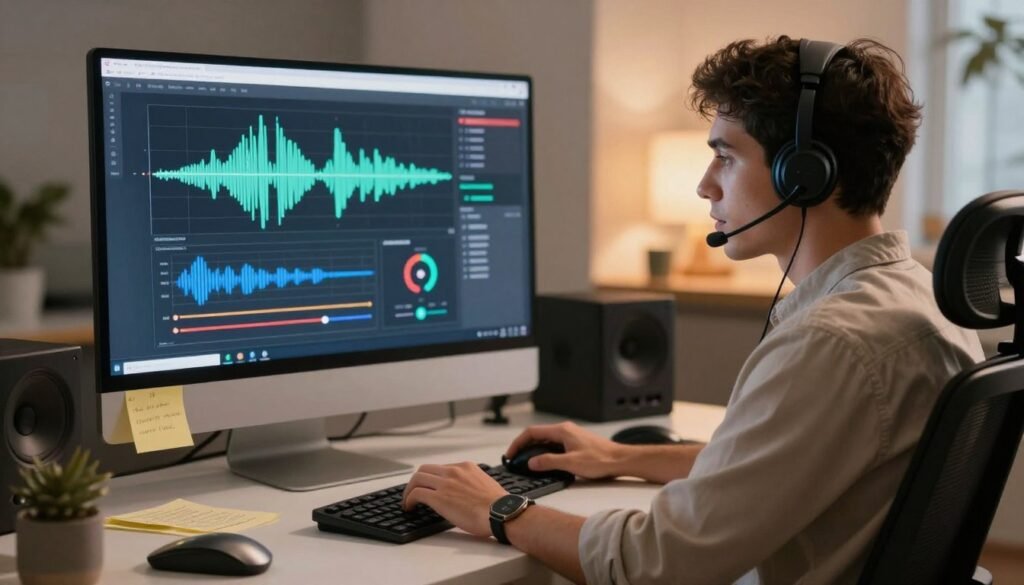
A sharp sound peak gives us a visible anchor for matching an audio clip to its moment in the video. The audio waveform makes loud events easier to spot, and zooming in helps us place the peak more precisely.
Find a sharp peak in the waveform, then locate the matching action or sound in the video. For example, match the peak for a spoken word to the frame where the speaker begins saying it.
Zoom in on the timeline before moving the clip. At a wider view, a small drag can shift the sound farther than we expect.
Slide the audio clip until its peak lines up with the matching event. If the peak is hard to spot, play the audio and watch for a clear change in the waveform.
Small timeline movements are easier to judge when the timeline is zoomed in. Preview the matched moment at normal playback speed to confirm the action and sound feel together.
Sync Audio on CapCut Mobile and iPhone
On an iPhone, we can align a voiceover by zooming into the CapCut Mobile timeline and moving its audio clip to the matching moment. For speech, manual placement is the way to sync the sound to the video, and Auto Beat Sync is for music beat markers.
To sync audio with video in CapCut Mobile on iPhone, pinch outward with two fingers to zoom in, then reposition the audio clip by hand. The closer timeline view helps us make smaller timing changes.
| Control | Platform | What it does |
|---|---|---|
| Pinch outward with two fingers | CapCut Mobile | Zooms in on the timeline |
| Long-press and drag an audio clip left or right | CapCut Mobile | Adjusts timing |
| Timeline zoom slider | PC | Makes audio adjustments more precise |
Use the timeline to place speech at the moment it belongs, rather than relying on music markers. Beat markers can help set video cuts to music, but they do not mark spoken words.
Make a small move, play the same part, and check whether the voice now matches the speaker’s mouth or action. Listen to the adjusted section before making another small movement.
Adjust Audio Timing with Frame-Level Precision
A one-frame timing change is about 33 ms at 30 fps and about 17 ms at 60 fps. Those values give us a useful guide for fine edits, though every display and listener may not reveal the change clearly.
On CapCut Mobile, long-press an audio clip and drag it left or right. On PC, click and drag the clip on the timeline. Moving the clip left makes its sound earlier; moving it right makes the sound later.
At 30 fps, each frame lasts about 33 milliseconds. At 60 fps, each frame lasts about 17 milliseconds, so the timeline offers a smaller time step at the higher rate.
Use frame-level timing as a way to think about small changes, not as a promise that every adjustment will be easy to hear. A sharp consonant or impact sound can make a slight shift easier to judge.
Make one small movement at a time, then replay the same cue to judge the result.
Sync a Voiceover with the Matching Video Cue
A hand clap creates an easy-to-find match between a voiceover recording and its video. The sync cue should be both visible and audible, so we can align the sound with the right frame.
Use this process for a separate recording. Mute the camera audio or extract it before adding the replacement track, so the two recordings do not play together.
- Choose a sharp sync cue, such as a hand clap.
- Find the matching frame in the video.
- Slide the voiceover until the cue and frame align.
- Mute the original camera audio or extract it before importing the replacement.
- Preview the section and listen for remaining drift.
A clap works well because its sound begins sharply and its movement is easy to spot. A vague cue, such as a soft breath, gives us a less exact match.
Replay the cue and nearby speech to catch any remaining mismatch.
Use Auto Beat Sync for Music Edits
For a music-led edit, Auto Beat Sync provides beat markers we can use to position video cuts. The markers offer a timing guide for music, while voiceovers need a spoken or visible cue.
Apply Auto Beat Sync to generate markers from the music. Place video cuts on the markers, then adjust any cut that feels early or late.
Listen to the music while reviewing the cut points. A marker can guide the edit, but the clip still needs to feel right with the beat.
Do not use music markers as a substitute for matching speech to its cue. A spoken line may start between beats and still need its own timing adjustment.
Preview the complete sequence and move any cut that lands awkwardly against the beat.
Correct a Fixed Offset or Gradual Drift
A fixed offset stays about the same across the recording, while gradual drift grows or changes over time. Compare moments near the start, middle, and end to tell which pattern we have.
Slide a Track with a Fixed Offset
If the same delay appears at each point, slide the whole audio track. A consistent gap calls for one track movement, not separate edits throughout the clip.
How can I fix audio delay while editing in CapCut? Slide the audio clip left or right to correct a consistent offset, then replay the same cue.
Repair Drift Across the Recording
If the gap changes between the start and end, the recording may have gradual drift. Divide it into logical sections and correct each section on its own.
Time-stretching means changing an audio clip’s duration while preserving the speaker’s pitch. It can help adjust a drifting recording without making the voice sound higher or lower.
Constant-frame-rate conversion may help when a recording’s frame timing contributes to drift. Replacing the affected voiceover section may also work when the mismatch stays limited to one part.
| Pattern | What to compare | Approach |
|---|---|---|
| Fixed offset | Start, middle, and end remain consistently displaced | Slide the whole track |
| Gradual drift | Displacement changes across start, middle, and end | Divide into logical sections and correct them |
| Affected voiceover section | Mismatch is limited to one section | Replace that section |
Compare the same clear cue near the start, middle, and end before choosing a correction.
Resolve Greyed-Out Sync and Source-File Problems
When CapCut’s desktop sync command is greyed out, first check that both the video and separate audio tracks are on the timeline and selected. The command needs both, so a missing track or selection can block it.
Check the Track Selection and Import
Confirm that the source file imports and that both tracks appear on the timeline. If the command stays unavailable, use manual waveform alignment instead.
- Verify that both tracks are selected.
- Confirm that the audio and video are on the timeline.
- Check that the source file imports.
- Use manual alignment if the command remains unavailable.
CapCut lists these import formats: MP4, MOV, M4V, and FLV. If a file will not import, check its format before trying the sync command.
| Import format | Listed as a CapCut import format |
|---|---|
| MP4 | Yes |
| MOV | Yes |
| M4V | Yes |
| FLV | Yes |
Check Screen-Recording Causes
A screen-recording tutorial can drift for several reasons. Variable frame rate, separate camera and microphone devices, mismatched project settings, or heavy capture load can affect timing.
Check how the recording was made as well as how its clips sit on the timeline. For a drifting screen recording, check its recording conditions as well as its clip placement.
Check CapCut Audio After Export
If the timeline sounds aligned but the finished video does not, compare the same cue in both versions. A matching reference moment can show whether the change begins after export.
Replay a clear speech or action cue in the timeline, then replay that moment in the exported file. Change export settings only when the mismatch appears in the finished file.
In one test, an H.264 MP4 export started with audio about 10 ms late, measured as 575 audio samples. H.264 in a MOV container stayed in sync in that test.
That result describes one test, not every CapCut export. If the mismatch appears only after export, try another export container and compare the same cue again.
Judge the exported file itself before changing the alignment of a timeline that already matches.
Finish an AI Video with a Device Playback Check
A clean timeline check is not the final check if the finished video will play through another device. Bluetooth playback delay from speakers or phones can affect what we hear, so check the intended output device.
After trimming or resizing clips, recheck audio alignment, since those edits can shift the sound’s place against the video.
- After trimming or resizing video clips, recheck audio alignment.
- Preview the finished video on the intended output device.
- Watch and listen to a clear speech or action cue for accurate timing.
Bluetooth speakers or phones can add slight playback delay. Testing on the device viewers will use helps us tell playback delay from a change in the edit.
Check the same clear cue on the device viewers will use, not only in the timeline.
Confirm the same clear cue on the output device viewers will use.
Conclusion
We can bring an AI-generated video back into sync by matching its sound to a clear cue and confirming the result in the finished file. A speech onset, clap, or sharp action gives us a practical point to check.
Open the CapCut project and replay one clear speech or action cue. Make the smallest needed adjustment, then check the export on the device viewers will use.
Start with one clear cue in the project and make a small, deliberate adjustment.
FAQ
AI Video Audio Out of Sync in CapCut
1. How can I fix audio delay while editing in CapCut?
If you experience AI Video Audio Out of Sync in CapCut, slide the audio clip left or right to correct a consistent offset. Replay the same speech or action to check whether the timing matches. If the audio matches near the beginning but becomes delayed later, you may have an audio drift problem. Compare multiple points before adjusting the entire track.
2. Why is my CapCut not syncing?
The AI Video Audio Out of Sync in CapCut problem can happen when video and separate audio tracks are not selected correctly. Make sure both clips are available on the timeline before using the desktop sync command. If automatic syncing is unavailable, manually align the audio with a clear visual cue.
3. Why is there a delay between audio and video?
A delay can happen because of incorrect track positioning, variable frame rates, separate recording devices, or project settings. When experiencing AI Video Audio Out of Sync in CapCut, compare the beginning and ending of your recording. A consistent gap usually requires moving the audio track, while changing delays may indicate audio drift.
4. How do I turn off audio sync?
CapCut desktop’s Sync Video and Audio feature is a command rather than a permanent setting. If you experience AI Video Audio Out of Sync in CapCut, manually move the audio clip after syncing to correct its position. Make sure both video and audio tracks are selected before using the synchronization command.
5. How to perfectly sync audio and video?
To fix AI Video Audio Out of Sync in CapCut, match a sharp sound such as a hand clap with its visible action. Zoom into the timeline and adjust the audio position carefully. Replay nearby speech and action to confirm the timing. Finally, export your video and test it on your intended playback device.
6. Can AI Video Audio Out of Sync in CapCut happen after exporting?
Yes, AI Video Audio Out of Sync in CapCut can sometimes appear after exporting because of frame-rate differences, encoding issues, or playback compatibility. Check your project frame rate and export settings. Play the exported file in another media player to determine whether the issue comes from the video file or playback software.
7. Why does my audio become delayed after a few minutes in CapCut?
If AI Video Audio Out of Sync in CapCut becomes worse over time, your recording may have audio drift. This can happen when audio and video are recorded using separate devices with different timing clocks. Check multiple points and consider converting variable-frame-rate footage to constant frame rate before editing.
8. How can I fix AI Video Audio Out of Sync in CapCut on PC?
For AI Video Audio Out of Sync in CapCut on PC, first check that your video and audio tracks are correctly positioned. Use the synchronization command if available, or manually adjust the audio waveform. Also update CapCut and check your project settings before exporting again.
9. Does changing the frame rate fix audio sync problems?
Changing the frame rate may help when AI Video Audio Out of Sync in CapCut is caused by variable-frame-rate footage or incompatible project settings. However, changing settings alone does not always repair an existing timing problem. Convert problematic footage to a constant frame rate and test the result in a new project.
10. Why is CapCut audio out of sync on my phone?
The AI Video Audio Out of Sync in CapCut issue on mobile can happen because of heavy video processing, application glitches, or unsupported media files. Close unnecessary background applications, restart CapCut, and check whether the original video plays correctly before editing.
11. Can using Bluetooth headphones cause audio delay in CapCut?
Yes, Bluetooth headphones can introduce playback latency while editing. If AI Video Audio Out of Sync in CapCut appears only during preview, test your project using wired headphones or your device speakers. This helps determine whether the exported video is actually out of sync.
12. How do I sync separate voice recordings with video in CapCut?
To resolve AI Video Audio Out of Sync in CapCut with separate voice recordings, place both files on the timeline and identify a clear sound or visual cue. Align the waveform with the corresponding action and replay the recording to verify accurate synchronization.
13. Does clearing CapCut cache fix audio synchronization problems?
Clearing temporary cache files may help when AI Video Audio Out of Sync in CapCut is caused by application glitches or playback problems. However, cache clearing will not automatically correct incorrectly positioned audio tracks. Back up your project before performing troubleshooting steps.
14. Why is my CapCut preview out of sync but the export is correct?
Sometimes AI Video Audio Out of Sync in CapCut occurs only in the preview because your device cannot process effects and high-resolution footage smoothly. Export a short test section and play it in another media player to confirm whether the final video is synchronized.
15. How can I prevent AI Video Audio Out of Sync in CapCut?
Prevent AI Video Audio Out of Sync in CapCut by recording audio and video with stable settings, using compatible frame rates, and checking synchronization before editing. Avoid unnecessary changes to project settings and always review the exported video before publishing.
16. Can variable frame rate cause audio sync issues in CapCut?
Yes, variable frame rate can contribute to AI Video Audio Out of Sync in CapCut, especially when footage comes from smartphones or screen recordings. Converting the original footage to a constant frame rate before importing it may improve synchronization and editing performance.
17. How do I fix CapCut audio drift without losing video quality?
To correct AI Video Audio Out of Sync in CapCut without unnecessarily reducing video quality, adjust the audio track separately whenever possible. If the source footage has variable frame rate, convert it using suitable settings that preserve the original resolution and quality.
18. Why does CapCut automatically change my audio position?
Automatic synchronization or manual timeline adjustments may change audio positioning. When AI Video Audio Out of Sync in CapCut happens unexpectedly, check whether clips were grouped, moved, or synchronized together. Review the timeline before making additional changes.
19. Can outdated CapCut software cause audio synchronization problems?
Yes, outdated software can contain bugs that affect media playback and editing. If AI Video Audio Out of Sync in CapCut continues, update CapCut to the latest available version and restart your device. Test the original footage in a new project.
20. How do I check whether my exported CapCut video is synchronized?
To check AI Video Audio Out of Sync in CapCut, export a short section containing clear speech or visible actions. Play it outside CapCut and compare the sound with the video. This helps identify whether the problem exists in the project or only in the preview.
21. Why does CapCut audio sync change after adding effects?
Some heavy effects and transitions can affect preview performance. If AI Video Audio Out of Sync in CapCut starts after adding effects, temporarily disable them and replay the timeline. Export a short test to check whether the final synchronization remains correct.
22. Can low RAM cause audio and video synchronization problems?
Limited RAM can make CapCut preview playback slower, especially when editing high-resolution videos. This may make AI Video Audio Out of Sync in CapCut appear during editing. Close unnecessary programs and lower preview quality to improve playback performance.
23. How do I fix AI Video Audio Out of Sync in CapCut after importing a video?
If AI Video Audio Out of Sync in CapCut starts immediately after importing footage, check the original file in another media player. Confirm that the audio and video work correctly before editing. If necessary, convert the footage into a compatible constant-frame-rate format.
24. Does exporting at a different frame rate fix CapCut audio delay?
Exporting at a different frame rate may help with certain compatibility problems, but it is not a guaranteed solution. For AI Video Audio Out of Sync in CapCut, match your export frame rate with the source footage and project settings whenever possible. Test the exported result before publishing.
25. What is the easiest way to fix AI Video Audio Out of Sync in CapCut?
The easiest way to fix AI Video Audio Out of Sync in CapCut is to identify the delay, align the audio using a clear cue, and check multiple points in the recording. If the delay increases over time, investigate frame-rate problems. Finally, export a test video and confirm that the audio matches the visuals.
26. How do I fix AI Video Audio Out of Sync in CapCut without editing the entire video?
To fix AI Video Audio Out of Sync in CapCut without changing the entire video, identify the section where the delay begins. Split the audio track at the affected point and adjust only that section. Replay the edited portion to make sure the sound matches the video correctly.
27. Why does CapCut audio become out of sync when using screen recordings?
Screen recordings can use variable frame rates, which may cause AI Video Audio Out of Sync in CapCut during editing. Convert the recording to a constant frame rate before importing it into CapCut. This can improve playback consistency and help maintain proper audio synchronization.
28. Can reinstalling CapCut solve AI Video Audio Out of Sync in CapCut?
Reinstalling CapCut may help if corrupted application files or software glitches cause AI Video Audio Out of Sync in CapCut. Before reinstalling, save and back up your important projects. Install the latest version, reopen your project, and test the audio synchronization again.