
Have you opened your video in VEED, tried generating automatic captions, and discovered that no subtitles are appearing? The VEED AI Subtitles Not Appearing problem can be frustrating, especially when we need to publish a video quickly or prepare content for YouTube, Instagram, TikTok, or other platforms.
VEED uses AI-powered speech recognition to convert spoken words into subtitles. However, automatic captions may fail to appear because of incorrect language settings, missing audio, unsupported transcription languages, browser problems, or an incorrectly selected video clip. Sometimes, subtitles are generated successfully but remain difficult to see because of their style, position, or timing.
Fortunately, we can troubleshoot these problems without rebuilding the entire video. By checking the audio, selecting the correct language, generating subtitles again, and reviewing the subtitle settings, we can often restore missing captions.
In this guide, we will explain how to fix VEED AI Subtitles Not Appearing, troubleshoot automatic transcription errors, recover missing captions, and make sure subtitles display correctly before exporting our videos.
1. Why Are VEED AI Subtitles Not Appearing?
Before changing settings, we should understand why VEED AI Subtitles Not Appearing happens. VEED needs clear audio, a supported transcription language, and the correct video selection to generate captions.
If one of these elements is incorrect, automatic transcription may not produce the expected results.
Here are some common reasons why VEED AI subtitles may not appear:
- Incorrect Language Selection: If we select a language that does not match the spoken audio, VEED may struggle to recognize the words correctly.
Understanding these causes helps us identify the right solution instead of repeatedly clicking the Auto-subtitle button.
We should start with simple checks, such as confirming that the video has audible speech and that we have selected the correct language.
2. Check Your Video Audio Before Generating Subtitles
One common reason for VEED AI Subtitles Not Appearing is an audio problem. VEED uses speech recognition to identify spoken words, so it needs an audio track containing understandable speech.
If our video has no sound, extremely quiet narration, or heavy background noise, automatic transcription may not work as expected.
We can check the audio by following these steps:
- Open VEED and sign in to our account.
- Open the project containing the affected video.
- Play the video in the editor.
- Listen carefully to the spoken audio.
- Check whether the volume is too low or muted.
- Look for an audio track in the project timeline.
- Confirm that the audio belongs to the correct video clip.
If we cannot hear the narration, check the video or audio settings before generating subtitles again.
Check for Background Noise
Background music, traffic, wind, and other sounds can make speech recognition more difficult. If our recording contains too much background noise, we should improve the audio before running automatic transcription.
Check the Audio Track
Sometimes, a project contains several video and audio layers. We should make sure that the clip we want to transcribe actually contains the narration.
If our video has a separate voiceover track, confirm that the correct audio is included in the project.
After checking the audio, return to the Subtitles tab and try generating captions again.
This step is particularly useful when VEED AI Subtitles Not Appearing affects only one video instead of every project.
3. Select the Correct Language in VEED Subtitle Settings
Incorrect language settings can cause VEED AI Subtitles Not Appearing or produce inaccurate captions.
For example, if someone speaks English in a video but we select Spanish for transcription, VEED may fail to recognize the spoken words correctly.
We should always select the language that is actually being spoken in the video.
Follow these steps:
- Open the affected project in VEED.
- Select the Subtitles tab from the left-side menu.
- Find the language selection option.
- Choose the language spoken in the video.
- Review the selected language carefully.
- Click Auto-subtitle to start transcription.
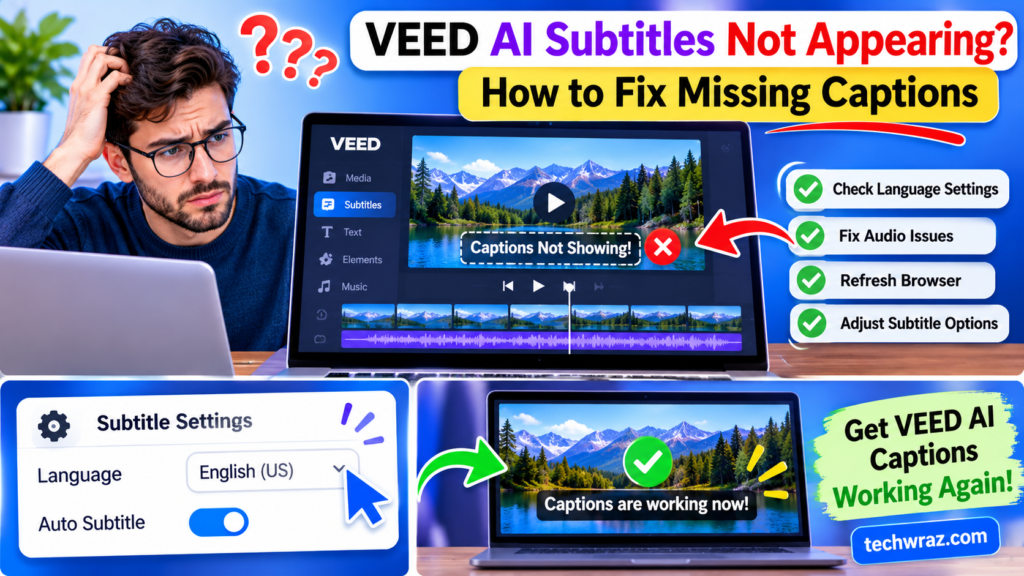
For example, if our video contains American English narration, select English (US) rather than another English variation.
Check VEED Language Support
Not every language has the same transcription and translation support. VEED maintains a list of supported languages for both features.
We should check the official language list before troubleshooting further:
VEED Supported Languages for Subtitle Generation and Translation
If our selected language is not supported for transcription, choosing another transcription language will not accurately solve the problem.
We should also remember that subtitle generation and subtitle translation are different features. A language being available for translation does not automatically mean it can be used for speech transcription.
Selecting the correct supported language is an important step when VEED AI Subtitles Not Appearing continues after checking the audio.
4. Generate Automatic Subtitles Again
If the audio and language settings are correct but VEED AI Subtitles Not Appearing continues, we should try generating the subtitles again.
Sometimes, the first transcription attempt may not complete as expected. Starting a fresh subtitle generation can help us determine whether the problem was temporary.
Here is how to generate subtitles again:
- Open the video project in VEED.
- Click the Subtitles tab on the left.
- Select the correct spoken language.
- Choose Auto-subtitle.
- Wait for the transcription process to finish.
- Review the generated subtitle lines.
- Check the video preview to confirm that captions are visible.
VEED’s automatic subtitle workflow takes us to the subtitle editor after successful generation. We can edit individual lines, correct words, and adjust the appearance of the captions.
If the project contains several clips, we should also confirm that the correct clip is selected before starting transcription.
Avoid clicking the generation button repeatedly while a previous request is still processing. Give the current operation time to finish before trying again.
If the subtitles still do not appear, move to the next troubleshooting method.
5. Select the Correct Video Clip or Full Project
Another possible reason for VEED AI Subtitles Not Appearing is selecting the wrong video clip.
This is especially important when our project contains multiple clips, separate audio tracks, or several scenes.
VEED allows us to generate subtitles for a specific clip or for the full project. If we select a clip without speech, the editor may not produce the captions we expect.
We can correct this by following these steps:
- Open our project in the VEED editor.
- Navigate to the Subtitles tab.
- Look for the clip selection dropdown.
- Review the available video clips.
- Select the clip that contains spoken audio.
- Choose Auto-subtitle to generate captions.
If we want captions for every suitable clip, select Full project instead.
VEED’s official automatic subtitle guide explains that the Full project option transcribes all clips in the timeline that contain audio.
This is useful when we have combined several recordings into one video and want captions across the complete timeline.
Important: If our project contains silent clips, background music, or separate narration, we should review the timeline before generating subtitles.
Selecting the correct audio-containing clip can resolve many VEED AI Subtitles Not Appearing problems without changing the rest of our video.
6. Refresh Your Browser and Clear Cached Data
Browser problems can also cause VEED AI Subtitles Not Appearing.
VEED runs in a web browser, so temporary website data, outdated browser files, or conflicting extensions may affect how the editor works.
If the subtitle panel is frozen, buttons are not responding, or transcription does not start, refreshing the browser is a reasonable troubleshooting step.
Step 1: Refresh the VEED Editor
- Wait for any active processing to finish.
- Make sure we have allowed the project to save.
- Refresh the browser page.
- Sign in again if necessary.
- Reopen the affected project.
- Check whether the subtitle controls are working.
Do not refresh the page while an important operation is still processing.
Step 2: Clear Browser Cache
In Google Chrome:
- Click the three-dot menu.
- Open Settings.
- Select Privacy and security.
- Click Delete browsing data.
- Select Cached images and files.
- Confirm the action.
- Reopen VEED and test the project.
Clearing cookies may sign us out, so we should avoid deleting them unless necessary.
Step 3: Disable Browser Extensions
Temporarily turn off extensions that may interfere with website functions, including:
- Ad blockers
- Privacy extensions
- Script-blocking tools
- Automatic translation extensions
- Other website modification tools
After disabling them, reopen the project and test automatic subtitles.
Step 4: Try Another Browser
If the issue continues, open VEED in another updated browser, such as Chrome, Edge, or Firefox.
If captions work in another browser, the original browser may be responsible for the problem.
These steps can help when VEED AI Subtitles Not Appearing is related to the browser rather than the video itself.
7. Adjust Subtitle Visibility, Position, and Style
Sometimes, VEED AI Subtitles Not Appearing does not mean that captions failed to generate.
The subtitles may already exist in the project, but their appearance settings make them difficult to see.
For example, white captions on a bright background may look invisible. Similarly, very small text or an incorrect position can make subtitles difficult to notice.
We can check these settings in the VEED subtitle editor.
Check the Subtitle Text
Open the Subtitles tab and review the generated lines. If the text appears in the editor but not in the video preview, inspect the styling options.
Change the Font Color
Choose a color that contrasts with the video background. White text with a dark outline or background can improve readability.
Increase the Font Size
If the captions are too small, increase their size so viewers can read them comfortably.
Review Subtitle Position
Make sure the captions are not positioned outside the visible video area or hidden behind other elements.
Check the Background and Outline
VEED provides options for text outlines, shadows, and subtitle backgrounds. These settings can help captions stand out against different video scenes.
Try a Different Subtitle Preset
Open the Styles section and select another available preset.
VEED also provides controls for font, color, alignment, spacing, animation, and other appearance settings.
After making changes, play the video again and check whether the captions are visible.
This method is particularly useful when VEED AI Subtitles Not Appearing happens even though the subtitle text is already available in the editor.
8. Fix Subtitle Timing After Editing Your Video
Another reason for VEED AI Subtitles Not Appearing is incorrect subtitle timing.
Sometimes, captions are generated successfully, but they appear too early, too late, or at the wrong point in the video.
This can happen when we edit the video after generating subtitles.
For example, if we trim a clip, remove a section, or rearrange scenes, the original subtitle timestamps may no longer match the updated video.
VEED also identifies mismatched subtitle timing as an issue that can occur after editing a video.
We can fix this problem by following these steps:
- Open the affected project.
- Review the video timeline.
- Check where the captions should appear.
- Open the Subtitles tab.
- Review the subtitle timings.
- Correct the timing if needed.
- Regenerate subtitles after completing video edits if the timestamps remain incorrect.
VEED provides timing controls that allow us to review and adjust when individual subtitle boxes appear.
If the captions are attached to the wrong section of the video, we should check the timing rather than generating multiple unnecessary subtitle versions.
Best Practice: Complete major video edits before generating automatic subtitles. This reduces the chance of mismatched timestamps and helps keep captions synchronized with speech.
If VEED AI Subtitles Not Appearing is actually a timing issue, correcting the timestamps may solve the problem.
9. Check VEED Plan Limits, Language Support, and System Status
If VEED AI Subtitles Not Appearing continues after trying the previous fixes, we should check whether the problem is related to feature availability or a temporary platform issue.
VEED makes automatic subtitle generation available across its plans, but feature limitations can vary. Some additional options, such as speaker detection and subtitle translation, have separate plan or credit requirements.
We should check the following areas.
Review Your Subscription
Open your VEED account and review the available plan details.
Confirm that the subtitle feature and any additional options we are trying to use are available under our current subscription.
Do not assume that a translation or speaker-detection restriction means basic subtitle generation is unavailable.
Check AI Credit Requirements
VEED states that automatic subtitle translation requires AI credits and has plan-specific limitations.
If our goal is basic transcription, make sure we are using Auto-subtitle rather than confusing it with the separate translation workflow.
Verify Language Support
Open VEED’s official supported-language list and confirm that our spoken language is available for transcription.
Remember that transcription and translation have separate support lists.
Check VEED System Status
Temporary service interruptions can affect online editing features.
Visit the official status page:
Look for the Subtitles and Editor Tools components. If VEED reports an active incident, wait for the service to recover before repeatedly attempting transcription.
A platform issue may affect several users at once, so changing our browser settings may not solve it.
Checking plan access, language support, and system status can help us identify why VEED AI Subtitles Not Appearing continues even when our video settings seem correct.
10. Use Manual Subtitles, Upload an SRT File, or Contact VEED Support
If automatic transcription still does not work, we do not have to abandon our video project.
VEED provides alternative ways to add captions, including manual transcription and subtitle file uploads.
These options can help us finish our video even when VEED AI Subtitles Not Appearing remains unresolved.
Option 1: Add Subtitles Manually
We can create captions by typing the spoken words directly into VEED.
Follow these steps:
- Open the affected project.
- Select the Subtitles tab.
- Choose Transcribe Manually.
- Enter the subtitle text.
- Adjust the timing.
- Review the captions in the video preview.
This option is useful for short videos or projects where automatic transcription is producing incorrect results.
Option 2: Upload an Existing Subtitle File
If we already have an SRT or VTT file, we can upload it instead of generating captions again.
Follow these steps:
- Open the project in VEED.
- Go to the Subtitles tab.
- Select Upload Subtitle File.
- Choose the SRT or VTT file from our device.
- Follow the on-screen instructions.
- Review the captions and their timing.
Make sure the subtitle file matches the spoken content and video timing.
Option 3: Contact VEED Support
If none of these methods work, contact VEED through its official support options.
Before contacting support, prepare:
- Your VEED account email.
- The affected project name.
- A screenshot of the subtitle error.
- Your browser and operating system details.
- The language selected for transcription.
- A short description of the troubleshooting steps you tried.
We can explain that automatic subtitle generation is not working and ask the support team to investigate.
Avoid sharing passwords, private account information, or payment details in support messages.
These alternatives allow us to continue editing while investigating the cause of VEED AI Subtitles Not Appearing.
Frequently Asked Questions
Why Are VEED AI Subtitles Not Appearing?
VEED AI Subtitles Not Appearing can happen because of incorrect language settings, missing audio, browser problems, unsupported transcription languages, or temporary processing errors. Check the video audio, select the correct language, and generate subtitles again.
Why Is VEED Not Generating Automatic Subtitles?
VEED may not generate automatic subtitles if the selected clip has no speech, the audio is unclear, or the transcription language is incorrect. Open the Subtitles tab, select the correct clip, and try Auto-subtitle again.
How Do I Fix Missing Captions in VEED?
To fix missing captions, check your audio track, verify the spoken language, refresh the editor, and review the subtitle settings. If automatic generation continues to fail, try manual subtitles or upload an SRT file.
Why Are VEED Subtitles Not Showing in the Video Preview?
Subtitles may be present but difficult to see because of their font color, size, background, or position. Open the Styles section and adjust the appearance settings to make captions visible.
Does VEED Support Automatic Subtitles in English?
Yes. VEED supports English transcription, including English (US). Select the correct English variation in the subtitle language settings before generating captions.
Can I Upload an SRT File to Fix VEED AI Subtitles Not Appearing?
Yes. VEED supports uploading existing SRT and VTT subtitle files. Open the Subtitles tab, choose Upload Subtitle File, and select the file from your device.
Why Are My VEED Subtitles Out of Sync?
Subtitle timing can become incorrect when we edit a video after generating captions. Complete major video edits first and regenerate subtitles to improve synchronization.
Can I Export a VEED Video Without Missing Captions?
Yes. After reviewing your subtitles, click Done and check the Burn Subtitles option before exporting. When enabled, subtitles are hardcoded into the exported video. When disabled, they are not burned into the video.
What Should I Do If VEED AI Subtitles Not Appearing Continues?
If VEED AI Subtitles Not Appearing continues after troubleshooting, check VEED’s system status and contact official support. Include your project details, screenshots, selected language, and browser information.
Final Thoughts
The VEED AI Subtitles Not Appearing problem can interrupt our video editing workflow, but it does not always mean that the project is damaged or that captions cannot be recovered.
We should begin by checking the audio track, confirming the correct language, and selecting the video clip that contains speech. If automatic transcription still fails, refreshing the browser, clearing cached files, and adjusting subtitle settings can help.
We should also check subtitle timing, supported languages, and VEED’s system status before assuming that the problem is permanent.
If automatic subtitles remain unavailable, manual transcription and SRT or VTT uploads provide useful alternatives.
By following these troubleshooting steps, we can resolve many VEED AI Subtitles Not Appearing issues, restore missing captions, and prepare videos for export with readable subtitles.
For more AI tool troubleshooting guides, practical tutorials, and technology tips, visit techwraz.com
FAQ
Not 1. Why Are VEED AI SubtitlesAppearing?
VEED AI Subtitles Not Appearing can happen because of incorrect language settings, poor audio quality, missing audio tracks, browser issues, or temporary processing errors. Check your video audio, select the correct language, and generate subtitles again.
2. How Do I Fix VEED AI Subtitles Not Appearing?
To fix VEED AI Subtitles Not Appearing, open your VEED project, check the audio track, select the correct transcription language, and click Auto-subtitle again. If the problem continues, refresh your browser and try another browser.
3. Why Are VEED AI Subtitles Not Appearing After Generation?
If VEED AI Subtitles Not Appearing after generation, your captions may be hidden because of incorrect font colors, subtitle positioning, or visibility settings. Open the Styles section and adjust the caption appearance to make subtitles visible.
4. Can Browser Problems Cause VEED AI Subtitles Not Appearing?
Yes, browser problems can contribute to VEED AI Subtitles Not Appearing. Outdated browser versions, corrupted cache files, and conflicting extensions may interrupt subtitle generation. Clear your browser cache, disable unnecessary extensions, and reopen VEED.
5. How Can I Recover Missing Captions When VEED AI Subtitles Not Appearing?
When VEED AI Subtitles Not Appearing causes missing captions, check your project and subtitle editor first. Try generating captions again or upload an existing SRT or VTT file. If the issue continues, contact VEED Support for further assistance.