
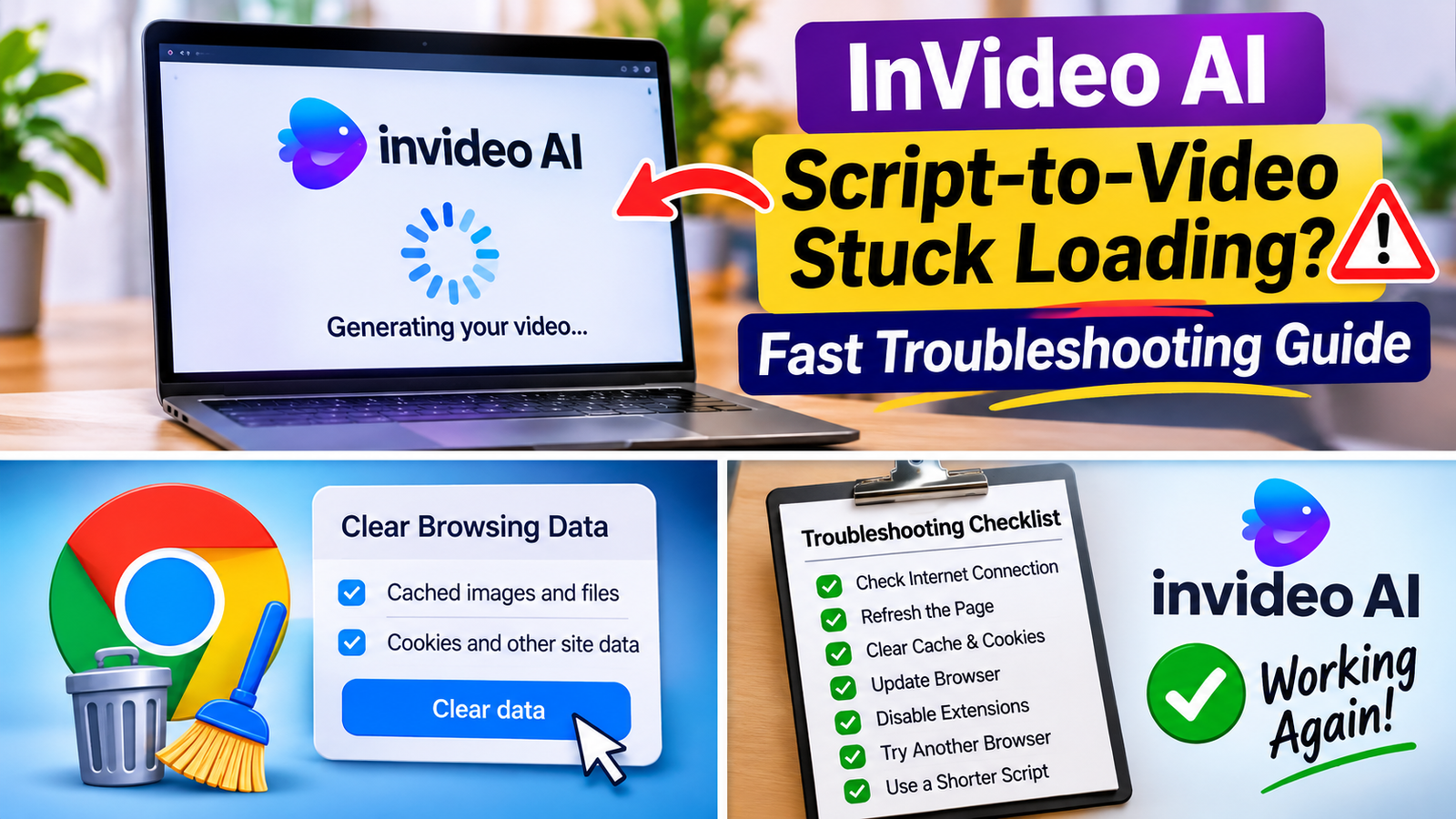
Are you facing the InVideo AI Script-to-Video stuck loading problem when trying to turn your written script into a video? You are not alone. Many users experience delays when generating videos, loading projects, or processing scripts in InVideo AI. Sometimes the loading screen continues without showing any progress, while other times the video generation process gets stuck before completion.
This issue can interrupt your creative workflow, especially when you need to finish a video for a client, social media account, YouTube channel, or business project. The good news is that most loading problems can be investigated with a few simple troubleshooting steps.
In this guide, we will explain why InVideo AI Script-to-Video gets stuck loading and how to fix it using practical solutions. We will cover internet connection problems, browser cache, outdated browsers, problematic extensions, large scripts, account limitations, and temporary server issues.
Our goal at techwraz.com is to help you identify the actual cause instead of wasting time repeating the same generation process. Follow the methods below one by one to get InVideo AI working smoothly again.
What Causes InVideo AI Script-to-Video Stuck Loading?
Before trying different solutions, we should understand why the problem happens. InVideo AI uses cloud-based processing to convert text prompts and scripts into video content. This process may involve generating scenes, selecting visuals, creating voiceovers, and combining different elements.
If one part of this process experiences a delay, the entire video generation process may appear frozen.
Here are some common reasons behind the InVideo AI Script-to-Video stuck loading issue:
- Slow internet connection: An unstable connection can interrupt communication between your browser and InVideo AI servers.
- Browser cache problems: Old or corrupted cached files may prevent the editor from loading correctly.
- Outdated browser: Older browser versions may have compatibility issues with modern video editing features.
- Problematic extensions: Ad blockers, privacy extensions, and script blockers can interfere with website functionality.
- Large scripts: Long scripts with complex instructions may take additional time to process.
- Temporary server problems: High traffic or maintenance can affect video generation.
- Account or usage limitations: Your available plan, credits, or generation limits may affect your ability to start another project.
Identifying the correct cause helps us choose the right fix. Instead of changing everything at once, we recommend testing each solution separately.
1. Check Your Internet Connection First

A weak or unstable internet connection is one of the first things we should investigate when InVideo AI Script-to-Video is stuck loading.
Although InVideo AI processes much of the video generation in the cloud, your browser still needs a stable connection to communicate with the platform. If the connection drops during script processing, the editor may stop responding or remain on the loading screen.
How to check your connection:
- Open a new browser tab.
- Visit a reliable website such as Google or YouTube.
- Check whether the pages load normally.
- Run an internet speed test if websites are responding slowly.
- Restart your Wi-Fi router if the connection keeps dropping.
- If possible, connect your computer using an Ethernet cable.
You can also try switching from Wi-Fi to a mobile hotspot temporarily. This helps us determine whether the problem is related to your internet provider or the InVideo AI platform.
If InVideo AI starts working after switching networks, your original connection may be responsible for the loading problem.
Important tip: Avoid downloading large files or streaming high-resolution videos while generating a project. Other activities using your available bandwidth can make the connection less stable.
2. Refresh the InVideo AI Page
Sometimes the InVideo AI editor gets stuck because a page request has failed or the browser has stopped updating the interface.
A simple refresh can restore the connection and allow the editor to load again. However, before refreshing, make sure your script and any important project changes are saved.
Follow these steps:
- Wait a few minutes to see whether the loading process continues.
- Check whether the project has already been saved.
- If your work is safe, refresh the InVideo AI page.
- Sign in again if the platform requests it.
- Open your project and check whether the editor loads properly.
If a normal refresh does not work, you can try a hard refresh.
On Windows, press Ctrl + Shift + R or Ctrl + F5. On Mac, press Command + Shift + R.
A hard refresh asks the browser to reload page resources instead of relying entirely on previously cached files.
If the InVideo AI Script-to-Video stuck loading issue disappears after refreshing, the problem may have been caused by a temporary browser or page-loading error.
However, refreshing repeatedly without checking whether your work is saved can put unsaved changes at risk. Always protect your project before trying this method.

Browser cache helps websites load faster by storing previously downloaded files. However, outdated or corrupted cached data can sometimes cause problems with online applications.
If InVideo AI keeps loading without opening the editor, clearing the browser cache is worth trying.
How to clear cache in Google Chrome:
- Open Google Chrome.
- Click the three-dot menu in the upper-right corner.
- Select Settings.
- Open Privacy and security.
- Select Delete browsing data.
- Choose Cached images and files.
- Select Cookies and other site data if you are comfortable signing in again.
- Click Delete data.
- Restart Chrome and open InVideo AI.
After clearing the cache, sign in to your account and try generating a short video.
Keep in mind that deleting cookies may sign you out of websites. Make sure you know your login details before proceeding.
If you use Microsoft Edge, Firefox, or another browser, follow the equivalent privacy settings to remove cached website data.
Why this works: Removing outdated browser files forces the website to download fresh resources. This can resolve certain loading problems caused by old scripts or stored website data.
4. Update Your Browser to the Latest Version
An outdated browser can create compatibility problems with modern web-based video editors.
InVideo AI relies on browser technologies to display its editor, process user input, and communicate with online services. Older browser versions may not support every feature correctly.
If you are experiencing the InVideo AI Script-to-Video stuck loading problem, check whether your browser needs an update.
Update Google Chrome:
- Open Chrome.
- Click the three-dot menu.
- Select Help.
- Click About Google Chrome.
- Allow Chrome to check for available updates.
- Install the update if one is available.
- Restart the browser.
You can follow a similar process in Microsoft Edge by opening Settings and selecting About Microsoft Edge.
We recommend using an updated version of a mainstream browser for better compatibility with online editing tools.
After updating, open InVideo AI again and test the script-to-video feature.
If the editor starts working normally, your previous browser version may have been causing the problem.
5. Disable Browser Extensions Temporarily
Browser extensions can improve your browsing experience, but some extensions interfere with websites that rely on scripts, media resources, and interactive features.
Ad blockers, privacy tools, VPN extensions, and script-blocking add-ons are common examples worth checking.
If the InVideo AI editor loads partially but never completes the process, an extension may be blocking something the website needs.
How to test extensions in Chrome:
- Open Chrome.
- Type
chrome://extensions/in the address bar. - Review your installed extensions.
- Temporarily disable ad blockers and privacy extensions.
- Restart the browser.
- Open InVideo AI and test video generation again.
You can also open an Incognito window and test the platform there. Remember that Chrome disables extensions in Incognito by default unless you have specifically allowed them.
If InVideo AI works in Incognito mode, an extension or stored browser data may be responsible.
Re-enable extensions one at a time to identify which one causes the problem.
Do not permanently remove every extension without testing. Our goal is to find the specific conflict while keeping useful browser tools available.
6. Try InVideo AI in a Different Browser
If the loading problem continues after updating Chrome and disabling extensions, we should test InVideo AI in another browser.
Sometimes a website works correctly in one browser but experiences problems in another because of differences in browser settings, cached files, or compatibility.
For example, if you normally use Google Chrome, try opening InVideo AI in Microsoft Edge or Firefox.
Follow these steps:
- Open another supported web browser.
- Visit the official InVideo AI website.
- Sign in using the same account.
- Open the project that was getting stuck.
- Try generating a short video using a simple script.
- Check whether the editor completes the loading process.
If InVideo AI works in the second browser, the issue is probably related to your original browser rather than your account.
You can then troubleshoot the original browser by resetting its settings, removing conflicting extensions, or creating a fresh browser profile.
If the InVideo AI Script-to-Video stuck loading issue appears in multiple browsers, we should investigate your project, account, internet connection, and possible platform problems.
7. Use a Shorter Script and Simplify Your Prompt
Long scripts and complicated instructions can make AI video generation more demanding.
When we submit a script, InVideo AI may need to interpret the content, divide it into scenes, select suitable visuals, and prepare other video elements. Depending on the project and platform conditions, this process can take longer than expected.
If your video generation keeps getting stuck, try using a shorter script to identify whether the original content is causing the delay.
How to test a shorter script:
- Create a new test project.
- Write a simple script containing two or three short paragraphs.
- Avoid unnecessary formatting and complicated instructions.
- Use straightforward language.
- Submit the script and wait for processing.
- Check whether the video generation completes.
If the shorter script works but your original script does not, the project content may be contributing to the problem.
We can also simplify the original prompt by removing repeated instructions, unnecessary descriptions, and overly detailed scene directions.
For example, instead of asking the AI to create dozens of complicated scenes with multiple visual effects, start with a simple request:
Create a two-minute educational video about healthy eating. Use clear narration, relevant visuals, and simple transitions.
Once the basic video generates successfully, we can add more detailed instructions.
Important: A long script does not automatically mean something is wrong. The purpose of this test is to identify whether the amount or complexity of the submitted content is affecting generation.
8. Check InVideo AI Server Status and Temporary Outages
Sometimes the problem has nothing to do with your computer, browser, or internet connection.
InVideo AI relies on online services to process scripts and generate videos. Temporary service interruptions, maintenance, or unusually high traffic may affect the platform.
If multiple projects are stuck loading, or the same issue appears on different devices, a temporary server problem is worth investigating.
How to check for server-related issues:
- Visit the official InVideo website.
- Look for any service announcements or maintenance notices.
- Check InVideo’s official support channels for recent updates.
- Review recent user reports to see whether others are experiencing similar problems.
- Wait for a while before submitting the same generation request again.
You can also visit InVideo’s official website to access the platform and look for available support options.
Avoid repeatedly clicking the Generate button when a server-side issue is suspected. Repeated requests may create duplicate generation attempts or make it harder to identify the original problem.
If the service is experiencing an outage, changing your browser settings will not solve it. We should wait until the platform is working normally again.
9. Check Your InVideo Account, Credits, and Project Status
Account-related restrictions can also affect your ability to generate new videos.
Depending on your subscription and the platform’s current policies, your account may have usage limits, generation restrictions, or other requirements.
If the InVideo AI Script-to-Video stuck loading problem happens only when starting a new video, check your account before making further changes to your browser.
What should you check?
- Account access: Make sure you are signed in to the correct InVideo account.
- Subscription plan: Review your current plan and its available features.
- Credits or usage limits: Check whether your account has enough available generation capacity, if applicable.
- Project status: Open your project list and check whether the video is already processing or saved.
- Payment status: If you recently purchased or renewed a plan, verify that the payment and account status are correct.
If your account shows an unexpected restriction, contact InVideo support for clarification.
We should avoid purchasing another subscription or buying additional credits before confirming the actual reason for the problem.
Also, do not delete an existing project just because it is stuck loading. First, check whether the project or its script can still be accessed.
10. Contact InVideo Support If Nothing Works
If you have tried the troubleshooting methods above and the loading problem continues, contacting official support is the next sensible step.
Support can help investigate issues related to your account, project processing, or technical problems that cannot be fixed through ordinary browser troubleshooting.
Before contacting support, collect a few useful details:
- Your browser name and version.
- Your operating system.
- The approximate time when the issue started.
- Whether the problem affects one project or every project.
- The troubleshooting steps you have already attempted.
- A screenshot or screen recording showing the loading problem.
You can also include the exact error message if InVideo AI displays one.
Visit the official InVideo website and use its available help or support options to submit your request.
Here is a simple message you can send:
I am experiencing an issue where InVideo AI Script-to-Video gets stuck on the loading screen. I have tested my internet connection, cleared browser cache, updated my browser, and tried another browser, but the problem continues. Please investigate whether there is an issue with my account or video generation process.
Providing clear information helps the support team understand the problem without asking you to repeat basic troubleshooting steps.
FAQ
Why Is InVideo AI Script-to-Video Stuck Loading During Video Generation?
The InVideo AI Script-to-Video Stuck Loading issue can happen because of a slow internet connection, a complex script, temporary server delays, or account-related restrictions. If InVideo AI takes too long to generate a video, try using a shorter script and check whether the platform is experiencing technical problems. These steps can help identify why video generation is not progressing.
How Long Does InVideo AI Take to Generate a Video?
InVideo AI generation time depends on script length, video complexity, selected features, and current server conditions. Short projects may finish faster, while longer videos can require additional processing time. However, if you experience InVideo AI Script-to-Video Stuck Loading for an unusually long period, refresh the page after confirming your project is saved and try generating the video again.
Why Is InVideo AI Stuck on the Loading Screen?
The InVideo AI Script-to-Video Stuck Loading problem may occur because of corrupted browser cache, outdated browser software, conflicting extensions, or an unstable internet connection. Temporary server problems can also prevent the InVideo AI editor from loading correctly. Try opening InVideo AI in another browser to determine whether your current browser is causing the loading issue.
Can Clearing Browser Cache Fix InVideo AI Script-to-Video Stuck Loading?
Yes, clearing browser cache can help fix InVideo AI Script-to-Video Stuck Loading when outdated or corrupted browser files interfere with the website. Clear cached images and files, restart your browser, sign in again, and reopen your project. Keep in mind that clearing cache will not resolve server outages, account restrictions, or other platform-related problems.
Can Browser Extensions Cause InVideo AI Script-to-Video Stuck Loading?
Yes, certain browser extensions can contribute to InVideo AI Script-to-Video Stuck Loading by blocking website scripts or essential resources. Ad blockers, privacy extensions, and script blockers are worth checking. Temporarily disable these extensions or open InVideo AI in an Incognito window to see whether video generation starts working normally.
What Should I Do If InVideo AI Is Not Generating Videos?
If InVideo AI is not generating videos, first check your internet connection and refresh the website after making sure your project is saved. Next, clear browser cache, update your browser, and test a shorter script. If the InVideo AI Script-to-Video Stuck Loading issue continues, check your account status, available usage limits, and InVideo service status. Contact InVideo support if none of these troubleshooting steps work.
Does InVideo AI Script-to-Video Stuck Loading Mean My Project Is Lost?
No, InVideo AI Script-to-Video Stuck Loading does not automatically mean your project is lost. In many cases, the video generation process gets interrupted because of browser problems, network errors, or temporary server delays. Sign in to your InVideo account again and check your project history before creating a new video. If your saved project is available, try generating it again with a shorter script.
Final Thoughts
The InVideo AI Script-to-Video Stuck Loading problem can interrupt your video creation process, but it does not always mean something is wrong with your account or computer. In many cases, the issue is related to browser settings, internet connectivity, script complexity, or temporary server delays.
To fix InVideo AI Script-to-Video Stuck Loading, start with simple troubleshooting steps. Check your internet connection, refresh the website, clear browser cache, and update your browser. If the loading screen still does not change, try another browser, disable conflicting extensions, and simplify your video script.
We also recommend checking your InVideo account, available usage limits, and project status before purchasing additional credits or creating a new project. These checks can help you avoid unnecessary expenses and identify the actual cause of the problem.
At techwraz.com, our goal is to make AI troubleshooting easier with practical instructions. By following these solutions one by one, you can understand why InVideo AI Script-to-Video Stuck Loading occurs and take the right steps to get your video generation process working again.